
The WP Toolkit in cPanel provides a centralized interface to install, configure, and manage WordPress websites. It simplifies administration tasks, improves security, and saves time by allowing you to manage multiple WordPress sites from one dashboard.
Why Use WP Toolkit?
-
Install and configure WordPress quickly.
-
Manage plugins, themes, and updates without logging into WordPress.
-
Apply security hardening with one click.
-
Clone, stage, and back up WordPress sites easily.
-
Monitor multiple WordPress installations from a single interface.
Managing WordPress Sites
1. Access WP Toolkit
-
Log in to cPanel.
-
On the Tools page → Domains section, click WP Toolkit.

-
The dashboard displays all WordPress installations on your account.

2. Manage Installations
From the WP Toolkit dashboard, you can:
-
Install WordPress → Create new WordPress sites with a guided installer.
-
Update WordPress Core → Keep your sites secure and up to date.
-
Clone Sites → Duplicate a site for staging or testing.
-
Back Up and Restore → Create backups and restore them when needed.
-
Security Hardening → Apply recommended security measures with one click.
3. Manage Plugins and Themes
-
Plugins Tab → Install, activate, update, or remove plugins.
-
Themes Tab → Install, activate, update, or remove themes.
-
Bulk Actions → Apply changes across multiple sites at once.
4. Configure Settings
-
Automatic Updates → Enable or disable updates for WordPress core, plugins, and themes.
-
Maintenance Mode → Put your site into maintenance mode during updates.
-
Debugging Tools → Enable debugging options for troubleshooting.
5. Security Features

-
WP Toolkit scans your WordPress sites for vulnerabilities.
-
Apply recommended fixes such as disabling file editing, securing
wp-config.php, and restricting access to sensitive files.
You can clone (create an exact copy of) an existing WordPress installation. This can be helpful during development, or for testing out a new theme, plugin, or site design.
To clone a site, follow these steps:
-
From the WP Toolkit main page, in a site list entry, click Clone.
-
You can clone a site to a new subdomain, or use an existing domain or subdomain.
-
To change the database name, type the new name in the Name text box.
-
Click Start. WP Toolkit begins cloning the site.
-
When cloning is complete, click Close. You now have an exact copy of your site.
WP Toolkit makes backup and restore management easy. To back up and restore your site, follow these steps:
-
From the WP Toolkit main page, in a site list entry, click Back Up / Restore.
-
To generate a backup, click Back Up:
-
-
After you have created at least one backup, you can restore, download, or delete it:
-
To restore a backup, click the restore icon:

-
To download a backup, click the download icon:

-
To delete a backup, click the delete icon:

-
Detaching WordPressYou may want to remove (detach) a WordPress installation from WP Toolkit. When you do this, you can no longer use WP Toolkit to manage the installation. To do this, follow these steps:
-
From the WP Toolkit main page, in a site list entry, click the
 icon, and then click Detach: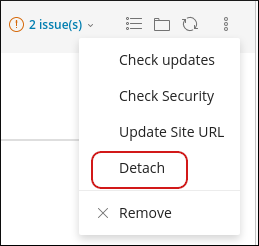
-
In the Detaching WordPress Websites dialog box, click Detach to confirm. WP Toolkit detaches the installation.
Deleting WordPressYou may want to delete a WordPress installation altogether. To do this, follow these steps:
-
From the WP Toolkit main page, in a site list entry, click the
icon, and then click Remove: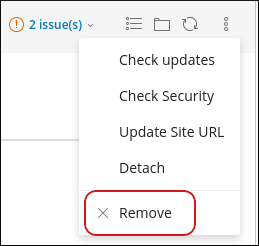
-
Select the components you want to remove, and then click Yes. WP Toolkit deletes the items you specified.
-
Notes
|


