
Renaming a MySQL Database
Learn how to rename a MySQL database with this complete walkthrough including detailed instructions, relevant code snippets, and links to related articles.
This article explains how to rename a MySQL database.
Renaming a MySQL database may be necessary during site development or when migrating data from one account or hosting provider to another. The method depends on whether your hosting account includes cPanel access.
Managed Accounts with cPanel
If your account includes cPanel, you can rename a MySQL database easily:
-
Log in to cPanel.
-
In the Databases section, click Manage My Databases (or MySQL Databases in cPanel version 118 or earlier).

-
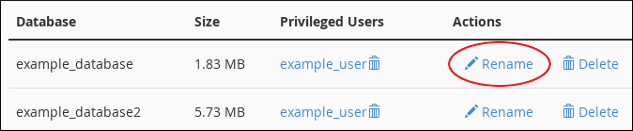
Under Current Databases, locate the database you want to rename.
-
In the Actions column, click Rename.
-
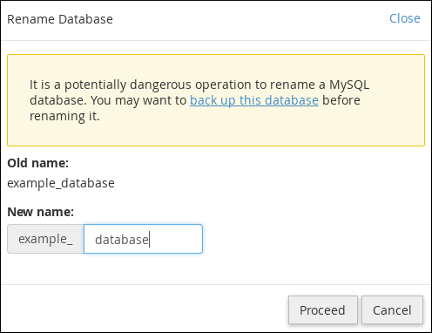
In the New name text box, type the new database name.
-
Click Proceed. cPanel renames the database.
Unmanaged Accounts without cPanel
If your account does not include cPanel, you can rename a MySQL database from the command line:
-
Log in to your server using SSH.
-
Create a new database:
mysql -u username -p -e "CREATE DATABASE new_dbname"-
Export the old database to a file:
mysqldump --routines -u username -p old_dbname > dbexport.sql-
Import the data into the new database:
mysql -u username -p new_dbname < dbexport.sql-
(Optional) Delete the old database:
mysql -u username -p -e "DROP DATABASE old_dbname"You can now use the new database new_dbname, which contains all tables and data from the old database.


