
- Incorrect login details
"Connection refused/reset" error:
- Port Block
- Maintenance on the server
- Domain is not pointed to the hosting server
- DNS propagation
"Connection timed out" error:
- IP Block
- Port Block
- Domain is not pointed to the hosting server
- DNS propagation
"Name not resolved (DNS Address could not be found)":
- DNS propagation
- Domain is not pointed to the hosting server
"Your IP address has changed. Please log in again":
- Dynamic IP
Corrupted cPanel interface/menu icons are not displayed:
- CloudFlare and cPanel
You can also reset your password if you still can't log in. In case you cannot log in even with the new reset details, there might be a block on the server-side.
Domain is not pointed to the hosting server
If your domain is registered with a third-party registrar, contact their support and ask to change the nameservers for your domain to the ones specified in your Your Hosting Account Details email.
If your domain is using Domain Registrar’s default nameservers and is pointed to the hosting server via IP address, make sure the IP is the correct one. You can check it in our Hosting Account Details email or in cPanel >> Server Information menu:
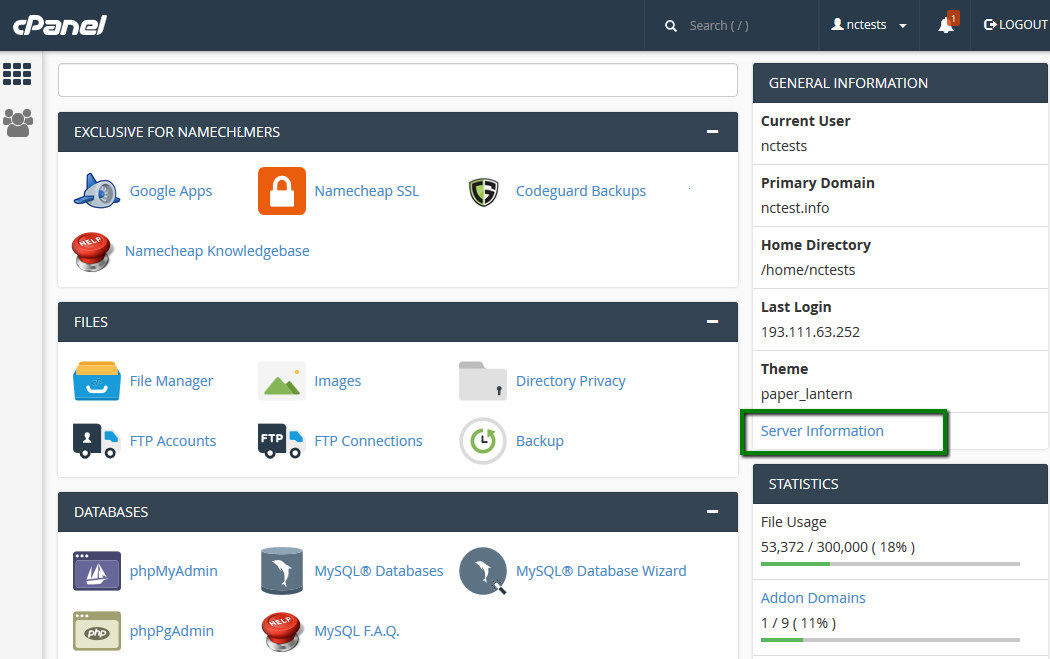
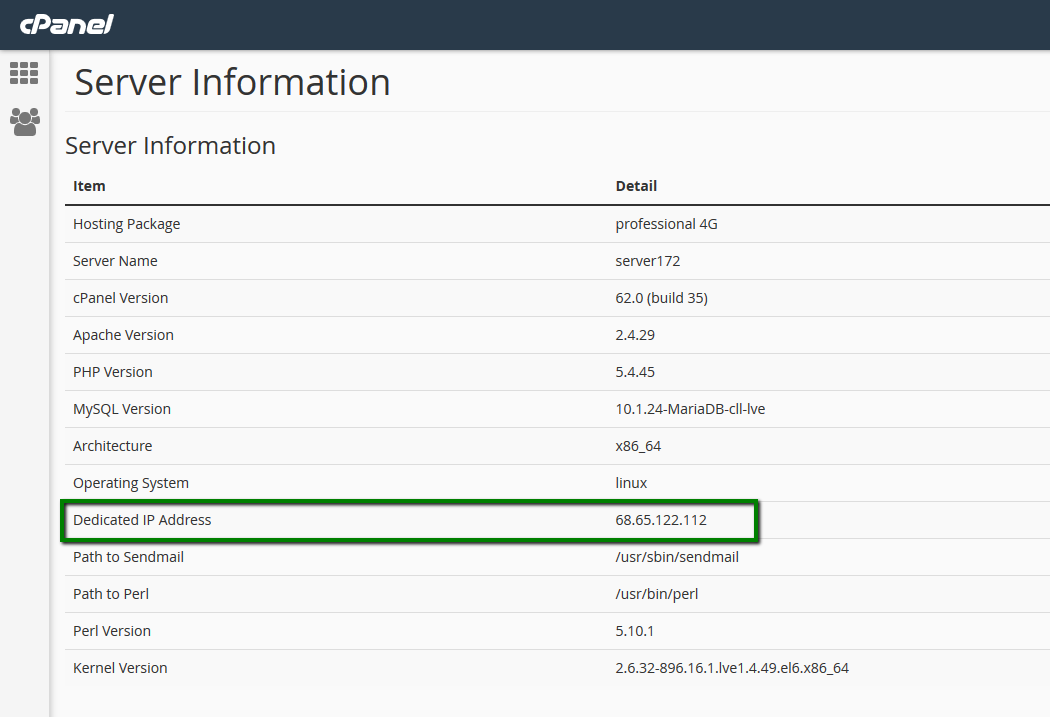
In case you do not want to re-point the domain, you will not be able to use domain-based URLs. In this case, you can access cPanel via Ruachost Dashboard or use alternative links:
- http://servername/cpanel
- http://servername:2083
- http://servername:2082
- http://cPanel_IP/cpanel
- http://cPanel_IP:2083
- http://cPanel_IP:2082
When you change nameservers for a domain name, these changes are not accepted instantly all over the world. It may take up to 24 hours (in rare cases, more) for local ISPs to update their DNS caches so that everyone can see your website. Since the caching time varies between ISPs, it takes time for DNS changes to be totally in effect. Unfortunately, this process cannot be influenced or sped up because of its automated nature.
When switching between Ruachost BasicDNS/PremiumDNS/Web Hosting DNS nameservers, the DNS changes come into the effect within one hour (24+ hours in rare cases).
If none of the following cPanel URLs open:
- http://example.com/cpanel
- http://example.com:2083
- http://example.com:2082
- http://servername/cpanel
- http://servername:2083
- http://servername:2082
- http://cPanel_IP/cpanel
- http://cPanel_IP:2083
- http://cPanel_IP:2082
most probably cPanel access ports are blocked on the side of your ISP, local computer, network, firewall or antivirus. In such cases you can use http://cpanel.example.com as it’s using HTTP port 80, which is available for everyone in the Internet.
If you tried all of the URLs and still receive the Server connection timed out error, most likely, your external IP address was blocked by our firewall.
To resolve the issue, contact our Support and we will unlock your IP.
You can receive this error when your ISP provided you with a dynamic IP.
To resolve the issue you can try to:
- use cPanel proxy link
- use http://cpanel.domain.tld link
- use a VPN connection
- ask the current ISP to provide you with a static IP
- https://cpanel-XXX.web-hosting.com
- https://webmail-XXX.web-hosting.com
- https://cpanel-XXX.registrar-servers.com
- https://whm-XXX.registrar-servers.com
- https://webmail-XXX.registrar-servers.com
1. Log in to WHM and navigate to Home >> Server Configuration >> Tweak Settings menu: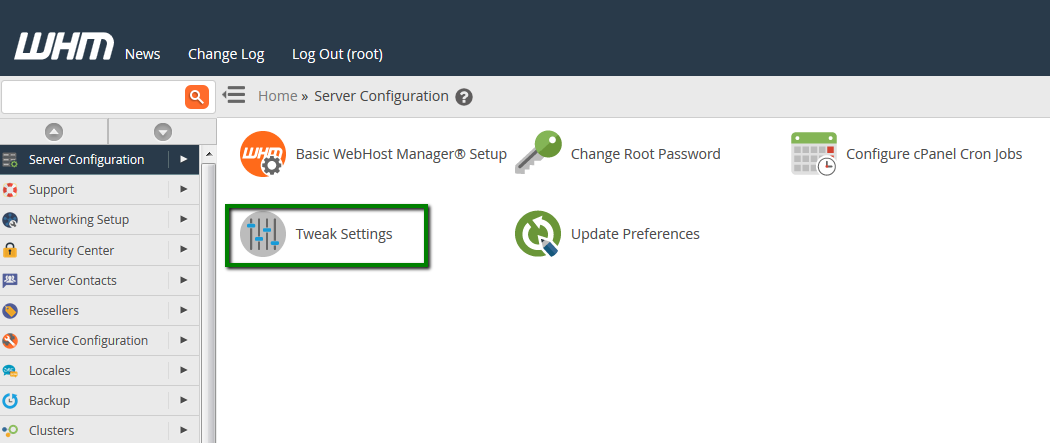
2. Find Cookie IP validation field in the Security section. Select loose option:
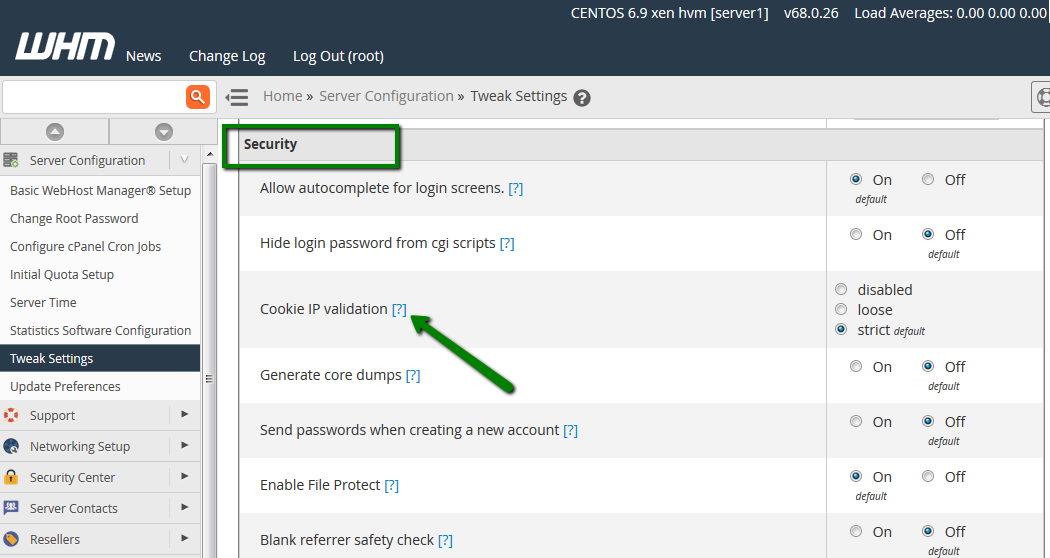

Click Save at the bottom of the page. You can find more details in cPanel documentation.
In some cases, enabling CloudFlare for the domain, may cause cPanel to not load correctly. Usually, there are no images in the main cPanel page and you get logged out when you try to access any menu: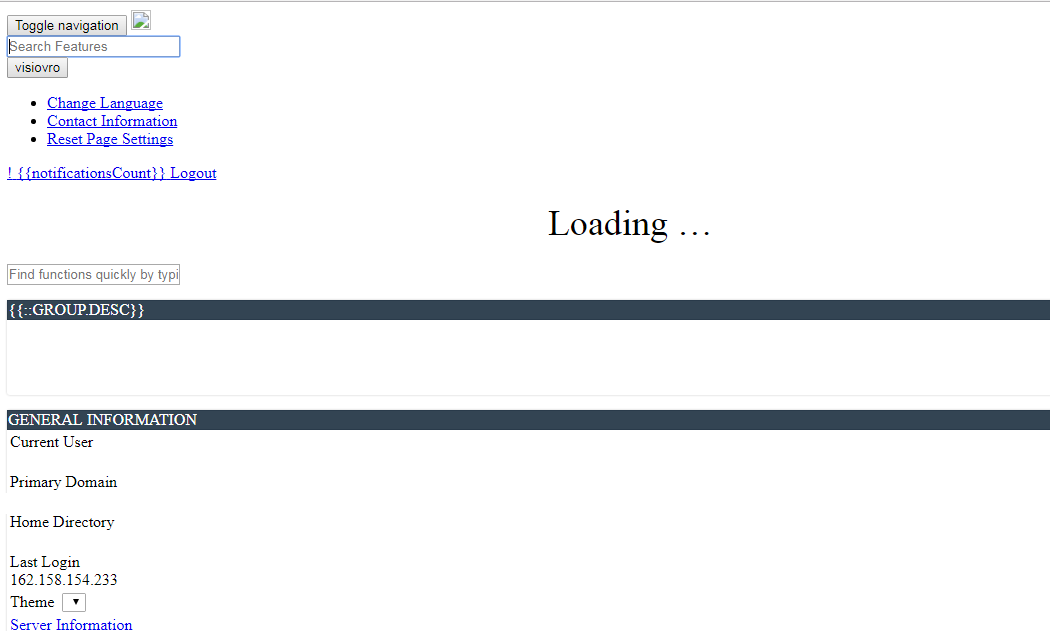
This issue is caused by cPanel in-built option Cookie IP Validation. It checks that the IP address that the visitor originally came from matches their IP address on subsequent requests. When you use CloudFlare, the IP address for requests to your server can variably come from any Cloudflare servers’ IP address, which can trigger the error.
In order to resolve the issue try the following steps:
- Use cPanel URL http://cpanel.domain.com , when it’s not proxied through Cloudflare (not orange clouded). Also, make sure this subdomain record exists on the CloudFlare’s side and pointed to your server IP address correctly.
- Use the proxy link: https://cpanel-XXX.web-hosting.com (for Shared Hosting) andhttps://cpanel-XXX.registrar-servers.com (for Reseller Hosting).
- Disable CloudFlare.


