
The WP Toolkit Deluxe in cPanel allows you to manage multiple WordPress installations from a single interface. This is especially useful if you host several WordPress websites and want to streamline updates, security, and plugin/theme management.
Why Use WP Toolkit for Multiple Sites?
-
Manage all WordPress sites from one dashboard.
-
Apply updates, security fixes, and configuration changes across multiple installations at once.
-
Save time by performing bulk actions instead of logging into each site individually.
-
Reduce risk by ensuring all sites are consistently maintained.
Managing Multiple WordPress Sites
1. Access WP Toolkit
-
Log in to cPanel.
-
On the Tools page → Domains section, click WP Toolkit.
-
The dashboard displays a list of all WordPress installations detected on your account.
2. Bulk Actions Available
From the WP Toolkit dashboard, you can perform actions across multiple sites:
-
Install → Add new WordPress sites.
-
Scan → Detect existing WordPress installations.
-
Updates → Check for updates and apply them to multiple sites at once.
-
Security → Run security checks and apply fixes across several sites simultaneously.
-
Detach → Remove installations from WP Toolkit management (without deleting the site).
-
Remove → Delete multiple WordPress installations at once. ⚠️ Use with caution.
3. Managing Plugins Across Sites
-
Go to the Plugins tab.
-
Install, activate, deactivate, update, or remove plugins across multiple sites.
-
Upload plugin
.zipfiles manually if needed.
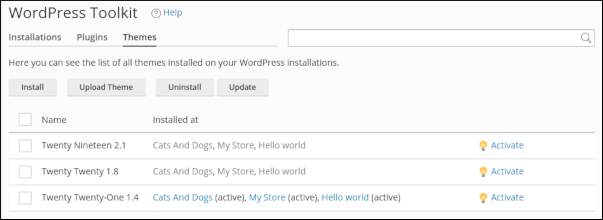
4. Managing Themes Across Sites
-
Go to the Themes tab.
-
Install, activate, update, or remove themes across multiple sites.
-
Upload theme
.zipfiles manually if needed.
Notes
-
Detaching a site removes it from WP Toolkit management but does not delete the WordPress installation.
-
Always back up sites before applying bulk updates or removals.
-
Use staging features to test changes before deploying them across multiple sites.


