
Resetting the Administrator Password in WHMCS
If you are a reseller running WHMCS and forget or lose the administrator password, you can reset it to regain access to your account. This guide provides two methods to reset the password.
Method 1: Use the Password Reset Web Link
-
Go to the login URL for your WHMCS installation.
-
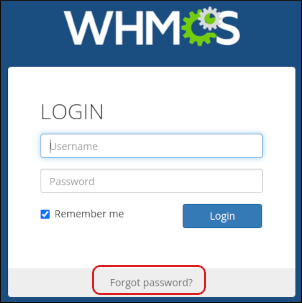
On the login page, click Forgot password?
-
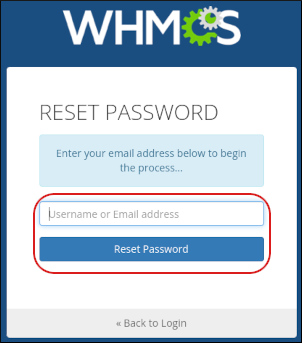
In the Username or Email address field, type the administrator's email address and click Reset Password.
-
WHMCS will send a password reset email to the address you specified. Click the password reset link in the email and enter a new password.
Method 2: Reset the Password in the WHMCS Database
If the web link method is unavailable, you can reset the password directly in the database:
-
Log in to cPanel.
-
On the Tools page, in the Databases section, click phpMyAdmin.

-
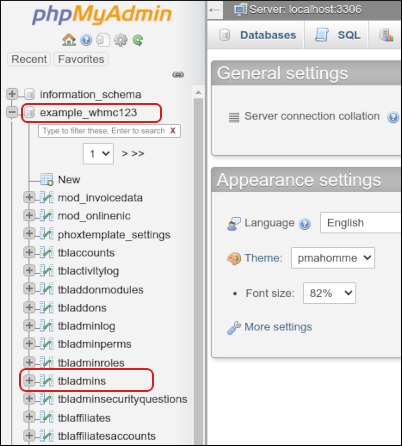
In phpMyAdmin, select your WHMCS database from the left-hand pane.
-
Click the tbladmins table.
-
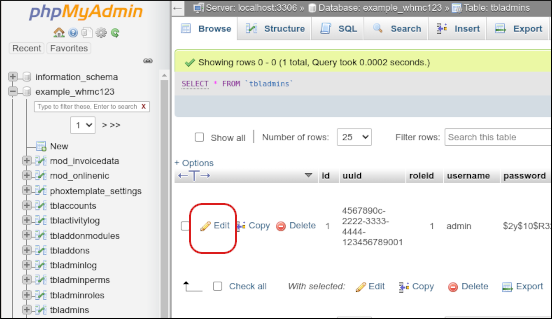
Locate the row for the administrator you want to reset and click Edit.
-
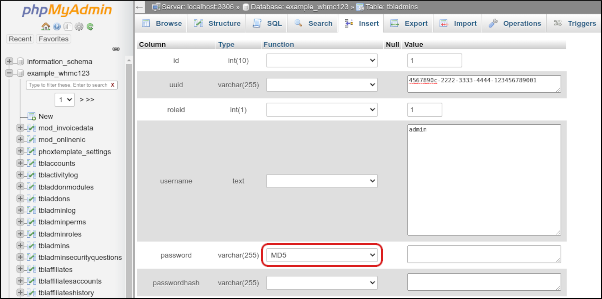
In the password row, select MD5 from the Function list box.
-
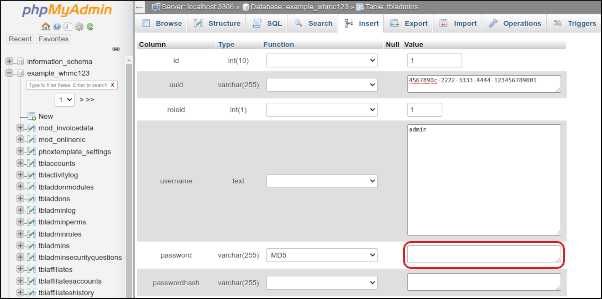
In the Value field for the password, delete the existing text and type the new password.
-
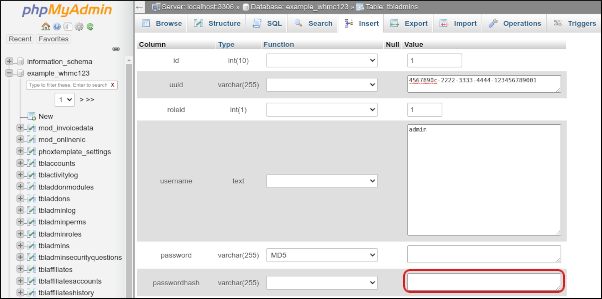
In the passwordhash row, delete any existing text in the Value field.
-
Scroll to the bottom and click Go to save the changes.
You can now log in to WHMCS as the administrator using the new password.


